Convert a bank statement to QuickBooks (.QBO)
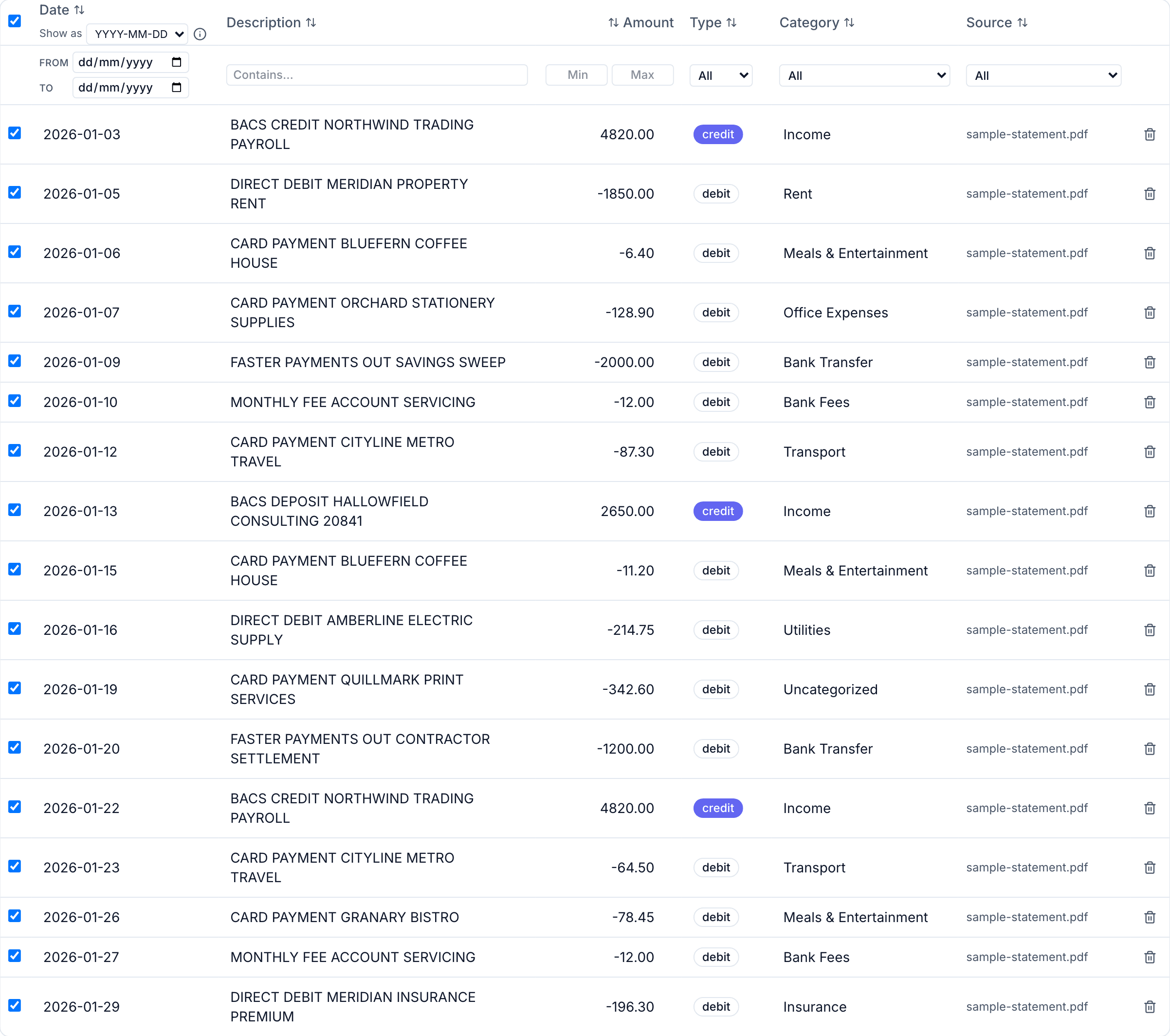
QuickBooks imports bank transactions from a .QBO file, the Web Connect format. ZeroParse turns a PDF statement into one, with every amount signed the way QuickBooks expects.
How it works
Upload the statement
Bank account or credit card, text-based or scanned.
Check it against the statement
We add up the rows we found and compare them with the opening and closing balance, the column totals, or the running balance your statement prints. You see whether they match before you export, and which figure disagrees if they don't.
Export for QuickBooks
Choose .QBO and import it in QuickBooks, picking the account the transactions belong to. .QBO export is part of the Pro and Firm subscriptions; CSV export is available on every plan.
What to know
Signs ready for import
Money spent exports as negative and money received as positive, for bank accounts and credit cards alike. Card statements that print purchases as positive are detected and flipped for you.
No account numbers inside
We never extract or store account or routing numbers, so the file carries placeholders. QuickBooks asks which of your accounts to import into anyway.
Several cards in one PDF
Consolidated statements are extracted in full. Where the statement's arithmetic proves which account each row belongs to, an Account column says so.
Common questions
- Can I export to QuickBooks?
- Clean CSV export is available on every plan, including Free. .QBO export (QuickBooks' Web Connect format) is a Pro feature.
- How does ZeroParse handle debit vs. credit on a credit card statement?
- We normalize every statement to the same convention QuickBooks and Xero expect: money you spent (a purchase) exports as negative, money you received back (a payment or refund) exports as positive — whether the file is a bank account or a credit card statement. Card issuers often print it the opposite way on the page itself (a purchase shown as a plain positive number, since it increases what you owe); we detect a credit card statement automatically and flip it, so what you export is ready to import rather than something you'd need to invert by hand.
- My statement covers several cards or accounts in one PDF. What happens to them?
- All of them are extracted — nothing is dropped, and the rows come out in the order the statement prints them. Where the statement gives each account its own opening and closing balance, we also work out which account every transaction belongs to and show it in an Account column you can sort, filter and export. We only fill that column when the statement's own arithmetic proves the split: each account's transactions have to add up to exactly the movement that account prints for itself. If two different splits would both add up — which happens when one card had no activity that period — we leave the column blank rather than guess, because a wrong account name is worse than none. For a .QBO or Xero export, filter the grid to one account first and export that. Those formats describe a single account per file, so exporting three registers into one would be wrong on import.
- What does the badge on each file mean — "Matches statement totals", "Doesn't match statement", or "Verify against the statement"?
- After extraction, we check whether the rows we found add up to what your statement says about itself — its opening and closing balance, its own column totals, or the running balance printed beside each row. "Matches statement totals" means they do, to the cent. The running balance is the most useful of the three when a file has one, because it is checked at every row rather than once at the end, so it can tell you which row something goes wrong at — and it catches a case the totals cannot: a file that is missing transactions whose amounts happen to cancel out. "Doesn't match statement" means they don't, and we show you exactly which figures disagree. "Verify against the statement" means your statement didn't print anything we could check against — no balances, no totals, no running balance — so we're telling you to eyeball it yourself rather than pretending it's fine. It's a common enough outcome that we publish the actual rate across our own test corpus on the benchmark page rather than asking you to take a number on trust. None of this is the same as an accountant reconciling your account against an independent record; it only checks that what we extracted is internally consistent with what your own statement says. Edit an amount or delete a row afterward and we re-run the same check automatically, so the badge always reflects what you're about to export — and because that recheck runs entirely in your browser, fixing a flagged row never sends anything back to our servers or creates a new copy of your data there.
Try it on your own statement: 50 free PDF credits
No card required. CSV, Excel and OFX files are free on every plan.