ZeroParse
HomeHelp

Everything ZeroParse does

From getting a statement in, to getting clean, categorized, reconciled data out — every feature, in one place.

No AI. No Hallucinations. Just Deterministic Math.

Getting your data in

Input & extraction

Every format a bank actually gives you
CSV, Excel (.xlsx/.xls), OFX/QFX, and PDF bank or credit card statements — dropped in and standardized to the same table.
  • CSV, Excel, and OFX/QFX are parsed entirely in your browser and are free and unlimited on every plan, including Free.
  • PDFs use each page's real text layer where available, with OCR as a fallback for scanned statements — 1 credit per page, up to 20 MB and 50 pages, with a 15-minute timeout for large scans.
  • Column headers are auto-mapped to Date/Description/Amount using common naming conventions — and when a file's headers name nothing, the columns are recovered from the data instead. Every mapping is visible and editable before you trust it.
Batch upload
Drop as many files as you need at once — CSV, Excel, PDF, or OFX/QFX in any combination — and they're combined into a single table.
  • A Source column shows which file each row came from, so a combined table never loses that trail.
  • Included at every tier, including Free — not held back as a paid-only feature.

We aim to prepare your statement with the utmost accuracy.

We check our own work.

Every upload is checked against the totals your statement prints about itself. When a statement doesn't print any, we say so — we never guess, and we never stay quiet.

Trust & accuracy

We check our own work — and we never guess

Reconciliation — we check our own work
Every upload is checked against the totals your statement prints about itself, and the result is shown as a badge next to the file, not asserted silently.
  • When a statement's own balances or column totals are recomputable from the extracted rows, you see a real pass/fail — not a guess.
  • When a file (like most OFX/QFX exports, which state only a closing balance) prints nothing checkable, the badge says so honestly instead of fabricating a check that would always pass.
  • Editing or excluding a row after the fact keeps the badge honest too — it re-checks or marks itself stale rather than standing next to numbers that no longer match what it verified.

A staged file row for sample-statement.pdf reading “17 rows standardized” and “17 transactions reconcile against the statement’s printed opening (12,480.55) and closing (18,566.15) balances.”
A real extraction, checked against the opening and closing balances the statement prints about itself. When a file prints nothing checkable, the badge says so instead.
No AI, anywhere in the pipeline
Extraction and categorization are both deterministic and rule-based — the statement's own text layer or OCR output, positional geometry, pattern matching, and keyword rules.
  • No LLM or machine-learning model is ever in the extraction or categorization path, so there's no AI hallucination risk.
  • Nothing about your documents is ever used to train a model.

Working with your data

Categorize, summarize, and correct

Rule-based transaction categorization
New
Every row is automatically categorized — Bank Transfer, Groceries, Transport, Meals & Entertainment, Income, Bank Fees, and more — with no setup required.
  • The built-in categories are tuned against real, anonymized transaction patterns, not a guess — including the payment rails each market actually uses: ACH, Zelle and Venmo in the US; Faster Payments, standing orders and direct debits in the UK; Osko, BPAY and PayID in Australia; UPI, NEFT and IMPS in India; PayNow and GIRO in Singapore. Transfers like these carry no merchant name for a rule to match on, which is exactly why they go uncategorized elsewhere.
  • You can add your own rules ("if the description contains X, categorize it as Y") — private to your account, checked before the built-ins, and always win on a match.
  • Any row's category can be corrected individually, the same click-to-edit interaction as Date, Description, or Amount.

  1. The categorization rule bar above the transaction table, showing an Add rule button and a note that built-in defaults for Rent, Payroll and Bank Fees apply too.
    Adding a rule happens where you spot the row that needs it. The built-in ones apply whether or not you add any.

  2. Two fields side by side reading “STATIONERY” and “Office Expenses”, joined by an arrow.
    A rule is a phrase to look for and the category to use. Press Enter to save it.

  3. A line above the transaction table reading “One of your own rules applies to these rows” followed by an “Edit or delete them” link, with an Add rule button below it.
    Saved rules are private to your account and are checked before the built-in defaults. The list itself lives in your account, so a hundred rules stay one line here.
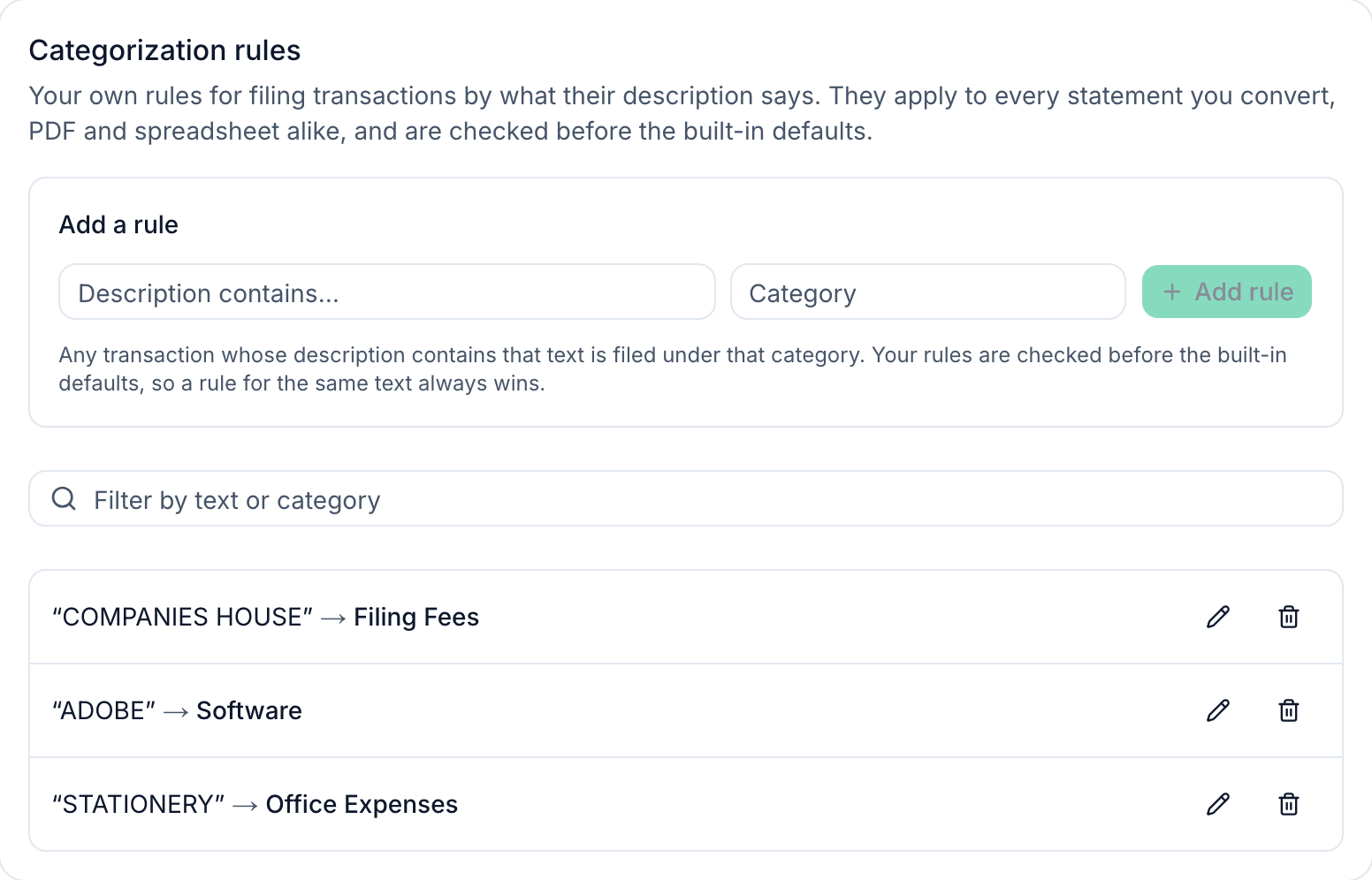
The Categorization rules page: an Add a rule form with “Description contains” and “Category” fields, a filter box, and three saved rules — “COMPANIES HOUSE” to Filing Fees, “ADOBE” to Software and “STATIONERY” to Office Expenses — each with edit and delete buttons.
Every rule you've added, in one place in your account — filter them, edit one, or delete it.
Revenue & Expense summary
New
A running breakdown of your selected rows by category and direction — updated live as you select, deselect, or recategorize.
  • Revenue and Expenses are each grouped by category and sorted by size, alongside the existing debit/credit/net totals.
  • Computed from the exact same rows the grid and export use, so the summary can never disagree with what you export.

The band above the transaction table: Debits USD 6,204.40, Credits USD 12,290.00 and Net USD 6,085.60; a panel reading period covered 2026-01-03 to 2026-01-29 over 27 days, repeated rows none to compare, and uncategorized 8% of expenses; and a Revenue and Expense breakdown listing Income against Bank Transfer, Rent, Uncategorized, Utilities, Insurance, Transport, Meals & Entertainment and Bank Fees.
Period, repeats, the share nothing categorized, and both sides broken down — all tied to the ticked rows rather than to the filtered view.
A results grid you can actually correct
Every extracted row lands in an editable table before it goes anywhere — click any cell to fix it, uncheck any row to exclude it.
  • Choose which columns are visible (Date, Description, Amount, Type, Category, Source), and the CSV export honors the same visibility — what you see is what you export.
  • Rows a mapping couldn't confidently parse are shown with the specific reason, not silently dropped.
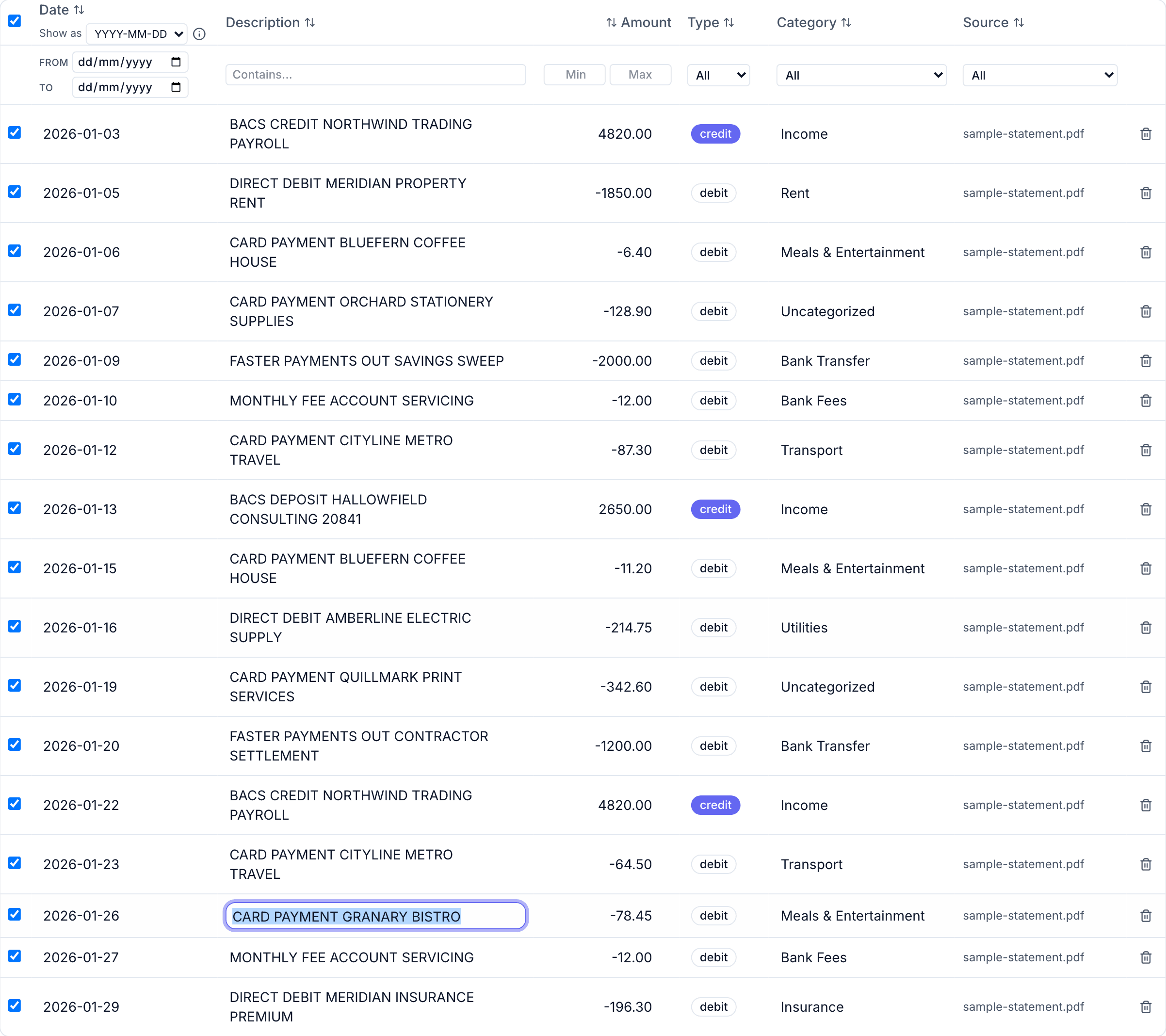
The transaction table with one description cell open as a text input, mid-edit, alongside per-column filters, row tickboxes and a delete control on each row.
Click any cell and it becomes an input — the same interaction for a description, a date, an amount or a category.

Getting your data out

Exports

Exports built for how accountants actually work
Clean CSV on every plan, plus QuickBooks and Xero formats that need no column mapping on import.
  • Clean CSV export is available on every plan, including Free.
  • .QBO export (QuickBooks' Web Connect format) is a Pro feature.
  • "Export for Xero" produces an OFX file Xero imports directly — verified with a real import into a Xero organisation, also a Pro feature.
  • Debit/credit sign is normalized to what QuickBooks and Xero expect automatically, including the flip a credit card statement needs versus a bank account.
  • Pro also unlocks custom column-mapping templates, so a recurring statement format never needs re-mapping by hand.

Privacy & security

Your statements never become our data

100% Private CSVs

CSVs parse locally in your browser and never touch our servers.

Zero-Retention PDFs

PDFs are processed in-memory and destroyed the instant extraction finishes.

No Data Training

We never store financial data or send it to third-party LLMs.

No ad networks, no data brokers, no AI training on your documents. Error monitoring and page analytics are scrubbed of document contents.

50 free PDF credits, no card required

CSV, Excel, and OFX/QFX parsing is always free, on every plan. Try PDF extraction on your own real statement before deciding whether Pro (from $19/mo) or a 300-credit pack is the right fit.